
In the LoadRunner manual scenario, the scenario is designed manually. That means you manually instruct the LoadRunner how many users to run and for how long a duration, and in what way the Vusers have to be started and ended. Based on the scenario, the script results will be provided by LoadRunner, like response time, hits per second, no. of Vusers running, etc. To prepare the manual scenario for your load test, you need to follow the steps below:
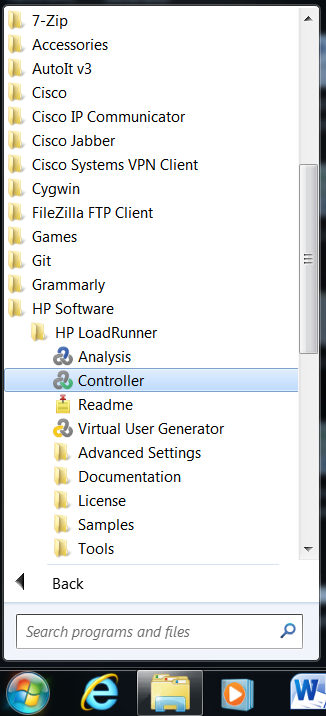
1. Open “Controller”
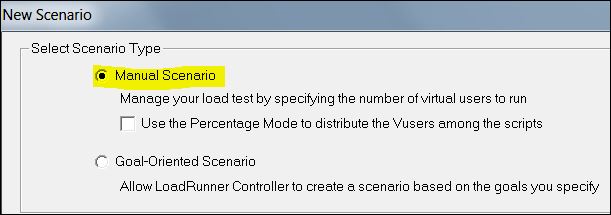
2. Choose “Manual Scenario”
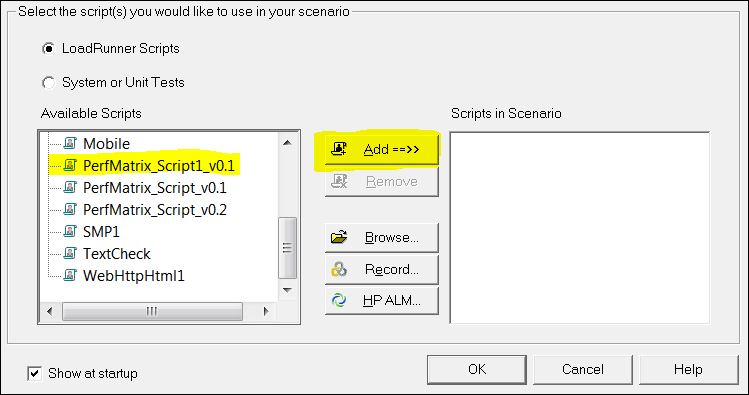
3. Choose and Add VuGen script(s)
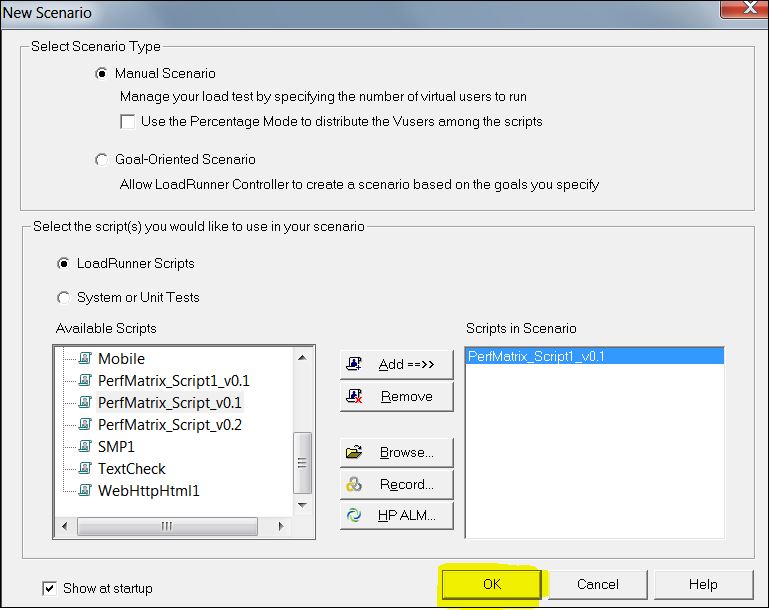
4. Click “OK”
5. Go to “Scenario Schedule”.
6. Provide the name of scenario (e.g. ‘Perfmatrix’ in below screenshot).
7. Select “Schedule by” and “Run Mode” as per your requirement.
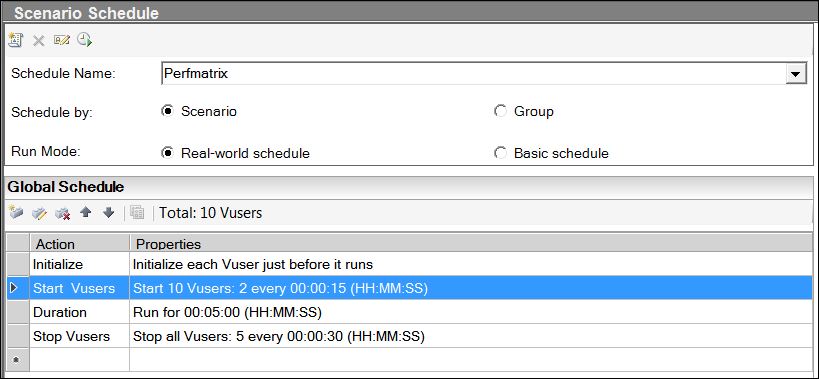
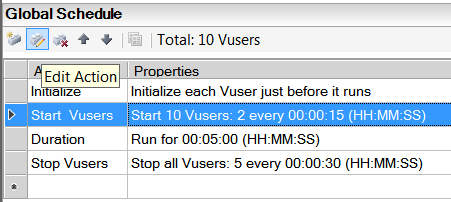
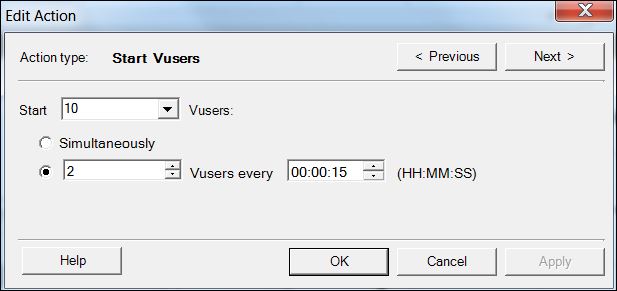
8. Set the no. of Vusers by clicking “Edit Action” button.
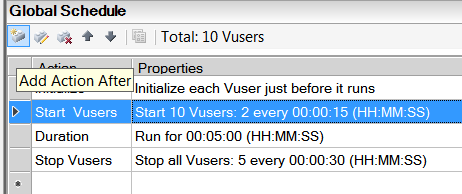
9. You can also add new actions by clicking “Add Action” button.
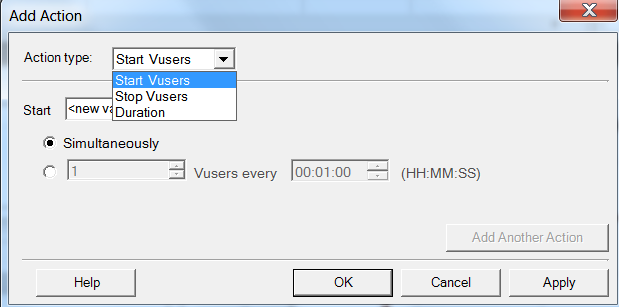
10. Similarly, you can delete any action by clicking the “Delete Action” button.

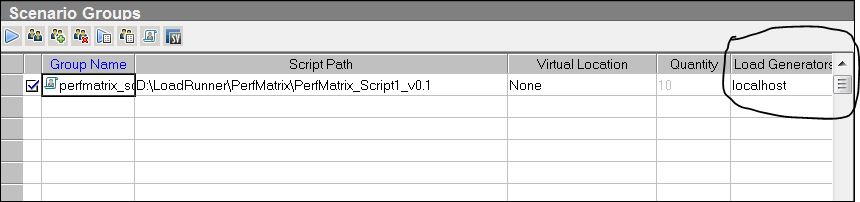
11. Select the load generator.
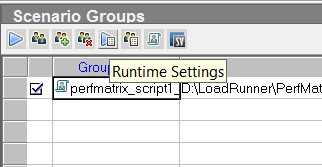
12. If you want to overwrite the runtime then use “Run-time setting” options, this will overwrite VuGen run-time setting.
That’s all. Likewise, you can create your performance test scenario (manually). The next step will be to execute the test.
You may be interested: